Dinoustech Private Limited
Mobile App Accessibility: How to Build Accessible iOS and Android Apps (WCAG 2.2, EAA and Testing Guide)
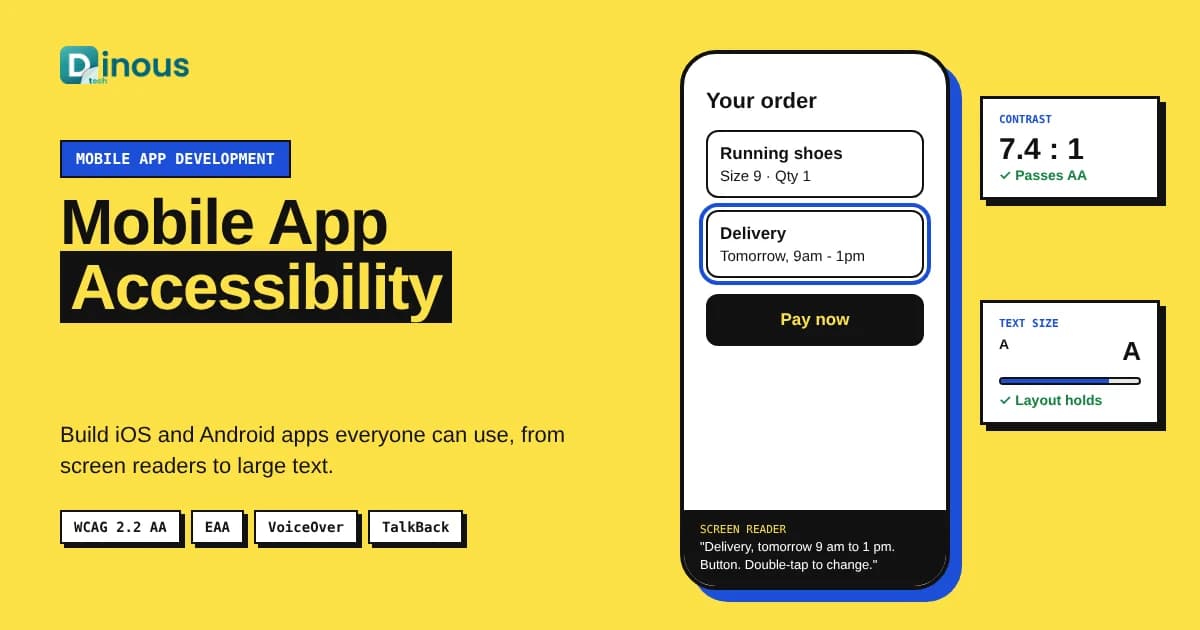
About one in six people worldwide lives with a significant disability, according to the World Health Organization, and many more use larger text, captions or voice control every day. If your app is hard to use with a screen reader, tiny buttons or low-contrast text, you lose those users, and in more and more markets you also take on legal risk. Mobile app accessibility means designing and building iOS and Android apps that everyone can perceive, understand and operate, including people with visual, hearing, motor and cognitive disabilities. This guide explains the standards and laws that matter worldwide, the practical rules for iOS, Android, Flutter and React Native, how to test, how AI helps, and what accessibility adds to cost and timeline.
Dinoustech is a mobile app development company that builds apps for startups and enterprises around the world. The checklist below is the one our designers, developers and testers use when a client asks us to make a new or existing app accessible.
Key Takeaways
- WCAG 2.2 Level AA is the practical benchmark for mobile app accessibility worldwide, even though it was written for web content.
- The European Accessibility Act has applied since 28 June 2025 to many consumer apps in the EU, including e-commerce, banking and transport services.
- Most problems come from a few causes: missing labels, small touch targets, low contrast, fixed text sizes and gestures with no alternative.
- Building accessibility in from design is far cheaper than fixing it after launch.
- Automated tools find only part of the issues; real testing with VoiceOver, TalkBack and users with disabilities is essential.
- AI helps by suggesting labels, checking designs and generating tests, but humans must review every result.
In this guide
Table of Contents
- What Is Mobile App Accessibility?
- Why It Matters for Your Business
- Standards and Laws Worldwide
- The Four POUR Principles on Mobile
- Accessibility Checklist for iOS and Android
- Flutter and React Native Accessibility
- How to Build an Accessible App
- Testing Tools and Methods
- How Dinoustech Uses AI
- Cost Factors
- Timeline
- Common Mistakes
- Why Choose Dinoustech
- Conclusion
What Is Mobile App Accessibility?
Mobile app accessibility is the practice of making an app usable by people with different abilities and in different situations. A blind user should be able to hear every button and image described by VoiceOver on iOS or TalkBack on Android. A user with tremors should be able to tap controls without hitting the wrong one. A user with low vision should be able to enlarge text without the layout breaking. A deaf user should get captions for video. A user with a cognitive disability should find clear language, consistent navigation and forgiving forms.
Accessibility also helps everyone else: captions help people in noisy places, high contrast helps in bright sunlight, and large tap targets help anyone using a phone with one hand. That is why many teams treat accessibility as part of overall app quality, not as a separate feature.
Why Accessibility Matters for Your Business
- Bigger market: people with disabilities, older users and their families are a large group of customers with real spending power.
- Legal protection: accessibility laws now cover many consumer apps in Europe, and lawsuits about inaccessible digital services are common in the USA.
- Enterprise and public sector deals: many buyers ask for accessibility conformance reports before they sign.
- Better UX and ratings: clear labels, readable text and simple flows make the app easier for everyone and reduce support tickets.
- Store visibility: Apple has added Accessibility Nutrition Labels to App Store product pages, so users can see which accessibility features an app supports before downloading.
Accessibility Standards and Laws Worldwide
There is no single global law, but most rules point to the same technical standard: the Web Content Accessibility Guidelines (WCAG) from the W3C.
| Region | Main rule or standard | What it means for apps |
|---|---|---|
| Global | WCAG 2.2 (Level AA) | The common benchmark; WCAG 2.2 added criteria for target size, focus visibility, dragging movements and accessible login. |
| European Union | European Accessibility Act (EAA), with EN 301 549 as the technical standard | Applies since 28 June 2025 to many consumer services, such as e-commerce, banking, e-books and passenger transport. Microenterprises offering services are exempt. |
| United States | ADA, Section 508 for federal agencies, and a 2024 DOJ rule for state and local governments | Courts often apply the ADA to apps; the DOJ rule points public bodies to WCAG 2.1 AA for websites and mobile apps. |
| United Kingdom | Equality Act 2010 and public sector accessibility regulations | Service providers must make reasonable adjustments; public sector apps must meet WCAG. |
| Canada, Australia and others | Accessible Canada Act, provincial laws such as AODA, Australia's Disability Discrimination Act | Similar expectations, usually measured against WCAG AA. |
This section is general information, not legal advice. Please check the rules that apply to your app and market with a qualified adviser.
The Four POUR Principles on Mobile
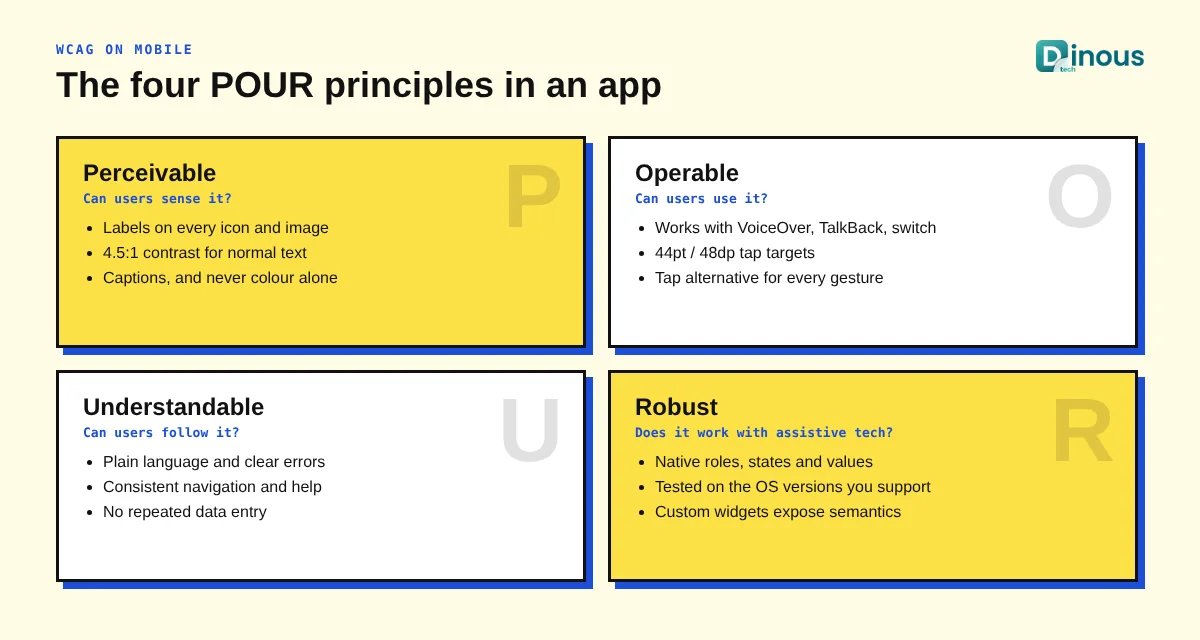
WCAG groups its rules under four principles. Here is what each one means inside a mobile app:
- Perceivable: every image, icon and control has a text label; text has enough contrast; video has captions; information is not shown by colour alone.
- Operable: every action works with a screen reader, switch control and keyboard; targets are large enough; complex gestures have a simple alternative; there are no time limits users cannot extend.
- Understandable: plain language, consistent navigation, clear error messages and forms that explain what is needed.
- Robust: controls use the native roles and states so assistive technologies can read them correctly on every OS version you support.
Accessibility Checklist for iOS and Android Apps
Screen readers and labels
- Give every button, icon and image a meaningful label (accessibilityLabel on iOS, contentDescription on Android). Mark decorative images so screen readers skip them.
- Expose the correct role and state, for example "button", "selected" or "switch, on".
- Keep a logical reading and focus order, and group related elements such as a product card.
- Announce important changes, such as "Item added to cart" or form errors.
Touch targets and gestures
- Make tap targets at least 44 x 44 points on iOS and 48 x 48 dp on Android, as recommended by Apple and Google. WCAG 2.2 sets a minimum of 24 x 24 CSS pixels with spacing exceptions.
- Offer a simple tap alternative for swipe, drag, pinch and shake actions.
- Support both portrait and landscape unless one orientation is essential.
Text, colour and contrast
- Use contrast of at least 4.5:1 for normal text and 3:1 for large text, icons and control borders.
- Support Dynamic Type on iOS and font scaling on Android, and test layouts at the largest sizes.
- Never use colour alone to show status; add text or an icon.
- Respect reduce-motion, dark mode and bold text settings.
Forms, login and media
- Visible labels on every field, clear error messages and no lost data on errors.
- Allow password managers, passkeys and biometrics so login does not depend on memory puzzles (see our article on biometric authentication).
- Captions for video, transcripts for audio, and controls to pause auto-playing media.
- Do not ask users to enter the same information twice in one flow.
Flutter and React Native Accessibility
Cross-platform apps can be fully accessible, but the framework must pass the right information to the native accessibility layer. If you are still choosing a framework, our guide to choosing a cross-platform app framework and our Android vs iOS comparison can help.
| Platform | Key tools and APIs | Watch out for |
|---|---|---|
| iOS (Swift / SwiftUI) | Accessibility labels, traits and hints; Dynamic Type; VoiceOver rotor; Accessibility Inspector | Custom controls without traits, fixed font sizes |
| Android (Kotlin / Compose) | contentDescription, semantics modifiers, TalkBack, Accessibility Scanner, Espresso accessibility checks | Clickable layouts without roles, small icons |
| Flutter | Semantics widget, MergeSemantics, text scaling, accessibility guideline tests in widget tests | Custom painted widgets with no semantics |
| React Native | accessibilityLabel, accessibilityRole, accessibilityState, accessible prop, allowFontScaling | Touchable views with no role, third-party components without labels |
For framework-specific builds, see our Flutter development guide and our article on building a React Native app with AI features.
How to Build an Accessible Mobile App
- Set the target: agree on WCAG 2.2 AA (plus EN 301 549 for the EU) as the acceptance standard in the contract and backlog.
- Accessible design system: define colours that pass contrast, text styles that scale, focus styles and minimum target sizes once, so every screen inherits them.
- Annotate designs: designers mark labels, headings, reading order and gesture alternatives in Figma before development starts.
- Build with native semantics: developers use standard components where possible and add roles, labels and states to custom ones.
- Automate checks: add accessibility linting and tests to the CI pipeline so regressions are caught early.
- Manual testing: test each release with VoiceOver, TalkBack, large text, switch control and voice control.
- Test with real users: include people with disabilities in usability sessions before major launches.
- Publish and maintain: write an accessibility statement, add a feedback channel and recheck after every big update.
If you are starting a new product, it is easiest to include these steps from your MVP onwards. Our custom mobile app development guide explains the full build process.
Accessibility Testing Tools and Methods
Automated scanners are fast but they cannot judge whether a label makes sense or whether a flow is confusing. A good test plan mixes three layers.
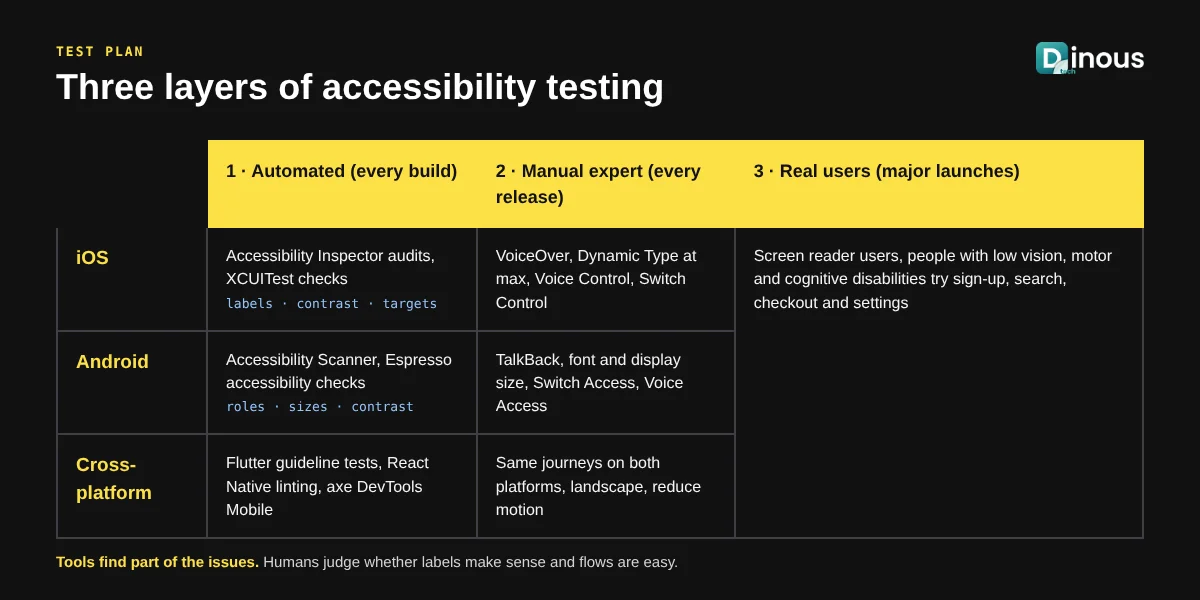
- Automated: Xcode Accessibility Inspector and audits, Android Accessibility Scanner, Espresso accessibility checks, Flutter guideline tests and commercial tools such as axe DevTools Mobile.
- Manual expert review: walk through key journeys (sign-up, search, checkout, payment, settings) with VoiceOver and TalkBack, maximum text size, colour filters and switch control.
- User testing: short sessions with screen reader users and people with motor or cognitive disabilities reveal real-world problems no tool can find.
Our article on how AI improves software testing explains how we speed up QA without losing depth.
How Dinoustech Uses AI for Accessible Apps
AI-assisted development
Our developers use AI coding assistants to suggest missing labels and roles, flag fixed font sizes and small targets during code review, and generate accessibility test cases for each screen. A senior engineer and a QA tester review every suggestion, because AI can write labels that sound right but describe the wrong action.
AI features inside the app
- Image descriptions: AI drafts alt text for user-uploaded or product images, with an option for humans to edit.
- Auto captions and transcripts: speech-to-text for video and audio content.
- Voice and chat assistants: users complete tasks by asking in plain language instead of navigating complex menus.
- Simplified text: AI offers a plain-language summary of long terms, instructions or results.
More ideas are in our post on AI features every mobile app should have.
AI support agent for our clients
After launch, our clients can use an AI support agent trained on their project documents and accessibility guidelines. It answers questions about content updates, such as how to add alt text in the admin panel, and passes complex issues to the Dinoustech support team.
Mobile App Accessibility Cost Factors
Accessibility costs least when it is planned from the start. The main factors are:
- New app or existing app: retrofitting an existing app usually costs more than building it right the first time.
- Number of screens and custom components: charts, maps, custom pickers and games need more work than standard controls.
- Platforms: native iOS and Android, a cross-platform app and a web app each need testing.
- Content volume: images, videos and documents that need alt text, captions or accessible formats.
- Audit depth: automated scan only, expert audit, or full conformance report (VPAT / ACR).
- User testing: sessions with people with disabilities add time and cost but give the most reliable results.
Timeline for an Accessibility Project
| Work | Typical duration |
|---|---|
| Accessibility audit of an existing app (key journeys) | 1-3 weeks |
| Design system and design fixes | 2-4 weeks |
| Development fixes for a mid-size app | 3-8 weeks |
| Retest, user testing and accessibility statement | 1-3 weeks |
| New app built accessible from the start | Usually adds a small share to the normal build time |
These are honest ranges, not promises. The real timeline depends on the size of the app and how many custom components it has.
Common Mobile Accessibility Mistakes
- Icon-only buttons with no label, so screen readers say "button" or read a file name.
- Layouts that break or cut off text when users choose large fonts.
- Light grey text on white backgrounds that fails contrast.
- Swipe-only actions, such as delete, with no visible button.
- Custom pop-ups that trap focus or are not announced.
- Captcha or puzzle login with no accessible alternative.
- Testing only once before launch and never again after updates.
Why Choose Dinoustech for Accessible App Development
- Native iOS, Android, Flutter and React Native development with accessibility built into the design system.
- Audits and fixes for existing apps, with clear reports your team can act on.
- Manual testing with VoiceOver, TalkBack and large text on real devices.
- AI-assisted delivery with human review, and useful AI features such as captions and image descriptions.
- Clients worldwide, with support after launch.
See examples of our work in our portfolio.
Conclusion
Mobile app accessibility is no longer optional for apps that want to grow worldwide. Set WCAG 2.2 AA as your target, build it into your design system, test with real assistive technologies and keep checking after every release. The result is an app that more people can use, fewer legal risks and a better experience for every user.
Want to build a new accessible app or fix an existing one? Contact Dinoustech for a free consultation and an accessibility plan for your app.